.jpg&w=3840&q=75&dpl=dpl_BmTcRbuQWaqryfkWHP9yeSuVw4id)
Keeping your bank accounts in sync with your business records is essential for accurate financial reporting and cash flow management. Yet, for many businesses, bank reconciliation can feel like a time-consuming chore. This is where Microsoft Dynamics 365 Business Central, one of the leading bank reconciliation software options in the market, steps in. With its built-in tools, you can streamline the entire bank reconciliation process, reduce errors, and gain real-time visibility into your finances.
Imagine a growing SME in Manchester that processes dozens of transactions daily – from supplier payments to customer receipts. At month-end, the finance team spends hours manually matching entries, only to find discrepancies caused by timing differences or missed transactions.
Table of Contents
- What is bank reconciliation, and why is it important for businesses?
- How does Business Central simplify the bank reconciliation process compared to manual methods?
- How do you set up bank accounts for reconciliation in Business Central?
- What types of bank accounts can be reconciled in Business Central?
- How is Bank Reconciliation in Sage 50 different from Bank Reconciliation in Business Central?
- Quick Comparison: Bank Reconciliation in Sage 50 vs Business Central
- How can Yavrio help you connect your D365 BC with your bank for live feeds and Bank Reconciliation?
These delays not only slow down reporting but also create uncertainty around available cash. It’s a common challenge: recent research shows that nearly 30% of UK SMEs have had to pause or scale back operations due to financial management issues, including difficulties reconciling accounts and accessing accurate cash flow data. Business Central eliminates these headaches by automating reconciliation, flagging mismatches instantly, and ensuring your books reflect reality without the stress.
In this article, we’ll explore how Business Central makes bank reconciliation simpler, faster, and more reliable for UK businesses; especially those seeking advanced reconciliation software, modern software for reconciliation, and fully automated bank reconciliation in Dynamics 365 ERP.
What is bank reconciliation, and why is it important for businesses?
Manual bank reconciliation often involves downloading bank statements, printing ledgers, and matching transactions by hand, which is an outdated and error-prone task. Dynamics 365 Business Central, however, replaces this with automation and intelligent tools that outperform traditional Sage bank reconciliation processes.
A bank reconciliation statement helps businesses:
Detects errors and discrepancies – such as missing entries, duplicate transactions, or incorrect amounts.
Prevents fraud – by identifying unauthorised or suspicious transactions.
Improves cash flow visibility – giving businesses a clear picture of available funds.
Supports compliance and reporting – ensuring financial statements are accurate and audit-ready.
Regular reconciliation in banks gives businesses the confidence needed to make informed financial decisions based on accurate records.
How does Business Central simplify the bank reconciliation process compared to manual methods?
Manual bank reconciliation often involves downloading bank statements, printing ledgers, and manually matching transactions is a time-consuming and error-prone task. Dynamics 365 Business Central streamlines this process by introducing automation and intelligent matching features:
Automatic Bank Statement Import – You can import electronic bank statements in formats like CAMT or MT940 directly into Business Central, eliminating manual data entry.
Transaction Matching Suggestions – The system automatically suggests matches between bank transactions and ledger entries, reducing the need for manual checks.
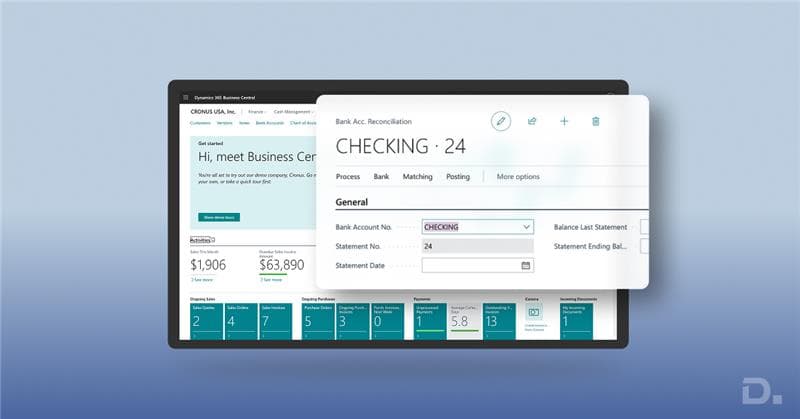
Payment Reconciliation Journal – This tool allows you to reconcile incoming and outgoing payments quickly, with options to post adjustments directly.
Error Detection and Alerts – Business Central flags discrepancies and unmatched transactions, helping you resolve issues promptly.
Integration with Cash Flow – Reconciled data feeds into cash flow forecasts, giving you real-time visibility of your financial position.
By automating repetitive tasks and providing intelligent tools, Business Central reduces reconciliation time, improves accuracy, and enhances financial control.
How do you set up bank accounts for reconciliation in Business Central?
Setting up bank accounts correctly is essential for smooth reconciliation in Dynamics 365 Business Central. Here’s how you do it:
Navigate to Bank Accounts
Go to Cash Management > Bank Accounts. This is where you create and manage all your bank accounts.
Create a New Bank Account
Select New, then enter details such as:
Bank Account Name – A clear identifier for the account.
Bank Account No. – The actual account number.
Currency Code – If the account operates in a foreign currency.
Bank Account Posting Group – Links the account to the correct general ledger accounts.
Set Up Posting Groups
Ensure the Bank Account Posting Group is configured under Setup > Posting Groups. This determines how transactions post to the ledger.
Enable Electronic Bank Statement Import (Optional)
If you plan to import statements, configure the Bank Statement Import Format (e.g., CAMT, MT940) under Data Exchange Definitions.
Define Reconciliation Settings
In the bank account card, specify:
Last Statement No. – To track statement sequences.
Balance at Bank – For initial reconciliation accuracy.
Once set up, you can start using the Bank Reconciliation or Payment Reconciliation Journal to match transactions efficiently.
What types of bank accounts can be reconciled in Business Central?
In Dynamics 365 Business Central, you can reconcile any bank account that has been set up in the system. This typically includes:
Current Accounts – Used for day-to-day business transactions.
Savings Accounts – For holding surplus funds or reserves.
Foreign Currency Accounts – Business Central supports multi-currency reconciliation, making it ideal for international transactions.
Virtual or Online Bank Accounts – Common for businesses using digital banking platforms.
Credit Card Accounts – These can also be managed and reconciled like standard bank accounts.
As long as the account is created in the Bank Accounts page and linked to the correct posting group, it can be reconciled using either the Bank Reconciliation or Payment Reconciliation Journal features.
How is Bank Reconciliation in Sage 50 different from Bank Reconciliation in Business Central?
While both Sage 50 and Business Central offer bank reconciliation features, the way they handle the process reflects their core design philosophies. Sage 50 focuses on simplicity for small businesses, whereas Business Central delivers a more automated, integrated approach suited for growing enterprises.
Here’s a clear comparison of Bank Reconciliation in Sage 50 vs Business Central:
1. Bank Reconciliation in Sage 50
Manual Process: Users typically import bank statements or enter transactions manually.
Matching: Sage 50 provides basic matching of transactions with ledger entries, but it often requires manual intervention.
Limited Automation: No real-time bank feeds; reconciliation is periodic and depends on statement uploads.
Interface: Simple and familiar for small businesses, but less advanced for automation.
Rules: Limited rule-based matching; mostly manual adjustments.
2. Bank Reconciliation in Dynamics 365 Business Central
Automated Bank Feeds: Supports direct integration with banks (via solutions like Yavrio or standard connectors).
Smart Matching: Advanced matching rules and tolerance settings for automatic reconciliation.
Real-Time Visibility: Bank balances and transactions can sync daily or in real time.
AI Assistance: Business Central can suggest matches and learn patterns over time.
Scalability: Ideal for growing businesses with multiple accounts and high transaction volumes.
Integration: Fully integrated with other modules (Cash Management, General Ledger, etc.).
Key Difference
Sage 50 = Manual, periodic, suitable for small businesses.
Business Central = Automated, real-time, scalable for medium to large businesses.
Quick Comparison: Bank Reconciliation in Sage 50 vs Business Central
| Feature | Sage 50 | Dynamics 365 Business Central |
|---|---|---|
| Bank Feeds | Manual import of statements | Automated live feeds via connectors (e.g., Yavrio) |
| Reconciliation Process | Mostly manual | Automated with smart matching rules |
| Matching Rules | Basic, limited | Advanced, configurable tolerance & rules |
| Real-Time Updates | No | Yes (daily or near real-time) |
| Integration | Limited to accounting module | Fully integrated with Cash Management & GL |
| Scalability | Best for small businesses | Ideal for medium to large businesses |
| Automation Level | Low | High (AI-assisted suggestions) |
| Compliance & Security | Basic | Bank-grade encryption & Open Banking standards |
How can Yavrio help you connect your D365 BC with your bank for live feeds and Bank Reconciliation?
Yavrio is a specialised solution that helps integrate Dynamics 365 Business Central (D365 BC) with your bank for live bank feeds and automated bank reconciliation. Here’s how it works and why it’s useful:
1. Direct Bank Connectivity
Yavrio acts as a secure bridge between your bank and Business Central.
It connects to multiple banks via Open Banking APIs or secure file exchange.
This eliminates the need for manual statement downloads and uploads.
2. Live Bank Feeds
Transactions from your bank account flow directly into Business Central in near real-time.
This ensures your cash position is always up-to-date.
You can view balances and transactions without leaving Business Central.
3. Automated Bank Reconciliation
Yavrio matches imported bank transactions with Business Central ledger entries automatically.
It uses smart matching rules to reduce manual effort.
Any unmatched transactions can be reviewed and reconciled quickly.
4. Security & Compliance
Yavrio uses bank-grade encryption and complies with Open Banking standards.
No sensitive data is stored unnecessarily; everything is processed securely.
5. Benefits for Finance Teams
Saves time by removing manual imports.
Reduces errors in reconciliation.
Improves visibility of cash flow and bank positions.
For businesses seeking modern bank reconciliation software, the Yavrio + Business Central combination is one of the strongest end-to-end solutions.
FAQs
1. What is bank reconciliation in Business Central?
Bank reconciliation in Business Central is the process of matching transactions recorded in your system with those on your bank statement to ensure accuracy and completeness.
2. Why is bank reconciliation important for UK businesses?
It helps maintain accurate financial records, supports compliance with UK accounting standards, and provides a clear picture of cash flow for better decision-making.
3. Can Business Central automate bank reconciliation?
Yes. Business Central offers features like automatic matching of transactions, importing bank statements, and suggesting entries to speed up the process.
4. How do I import bank statements into Business Central?
You can import statements using supported file formats such as CAMT or CSV. Business Central then uses these files to match transactions with your ledger entries.
5. What happens if there are unmatched transactions?
Unmatched transactions are flagged for review. You can manually reconcile them or investigate discrepancies such as timing differences or missing entries.
6. Does Business Central support multiple bank accounts?
Yes. You can manage and reconcile multiple bank accounts within the same system, making it ideal for businesses with complex banking needs.
7. How often should I perform bank reconciliation?
Most UK businesses reconcile monthly, but Business Central allows you to do it as frequently as needed, even daily, for real-time accuracy.
8. Is bank reconciliation in Business Central compliant with UK regulations?
Yes. Business Central is designed to meet UK financial reporting standards and supports audit trails for compliance.
Conclusion
Bank reconciliation doesn’t have to be a tedious, error-prone process. With Microsoft Dynamics 365 Business Central, UK businesses gain a powerful, automated, and intelligent solution that keeps financial records accurate, cash flow clear, and month-end stress to a minimum. Whether you’re managing multiple accounts or high transaction volumes, Business Central enhances every aspect of the bank reconciliation process. And with Yavrio enabling real-time bank feeds, you can rely on one of the most advanced bank account reconciliation software ecosystems on the market.
Ready to simplify your bank reconciliation and modernise your financial management?
Contact Dynamics Square UK today.
Our experts help implement, optimise, and support Microsoft Dynamics 365 Business Central complete with Yavrio integration, automated feeds, and customised reconciliation workflows.
Book a free consultation now and transform your finance operations with smarter, faster, real-time reconciliation.
Let’s streamline your financial processes together. If you need any help, don't hesitate to reach out to us. You can give us a call at + 44 203 769 7689 or send us an email at info@dynamicssquare.co.uk.