.png&w=3840&q=75&dpl=dpl_FeBXFurU8TV9Dsx5B4HYvrCjoi8q)

The process to establish a connection of Snowflake to Power BI is simple when we use Microsoft Entra ID. But, before getting into the making of connections, let’s talk a bit about Snowflake.
Snowflake is a powerful data platform that helps businesses harness the power of data using cloud data infrastructure. It enables users to gain actionable data insights, create better business opportunities, and better understand their audience or customers for an improved user experience.
Table of Contents
Snowflake can let you access your structured as well as unstructured data anywhere and anytime through the cloud. It manages updates, upgrades, and maintenance for smooth operations and administration. Businesses can also scale their data workloads with Snowflake’s cloud-based architecture.
When connecting Snowflake with Power BI, businesses can use either Import or DirectQuery, depending on their reporting requirements. The current Snowflake connector in Power BI also supports Microsoft Entra ID authentication, key-pair authentication, and service principal authentication in supported scenarios.
What Snowflake can do with Power BI?
The best part of data cloud is managing critical workloads even during peak times while unifying customers, partners, and suppliers. The integration of Snowflake to Power BI makes the visual analysis of data more powerful and up-to-date. Snowflake’s rich metadata can also support data analysis and exploration across different types of data.
Snowflake provides a SQL-based data platform that can handle complex operations and queries. Its cloud architecture allows organisations to scale computing resources according to their workload requirements.
After the integration, it makes it possible for MS Power BI to analyse data on different standards, including numbers, location, custom text, date, time, and much more. Based on such parameters, Power BI will build more interactive and user-friendly data visuals utilising charts and graphs.
How to build a Connection to Snowflake to Power BI Service?
To establish a connection, we need to use Microsoft Entra ID and have the required administrative access to Power BI, Snowflake, and Microsoft Entra ID. Snowflake works with Microsoft Entra ID to provide an optional single sign-on (SSO) experience in Power BI.
At first, we need to enable SSO using Power BI Admin, and the steps are discussed below.
The below steps should be followed by the Power BI administrator.
First, sign in to Power BI with the necessary credentials.
Once you successfully log in to your account, click on the Settings button available in the header menu.
The drop-down menu will open some options, among which you need to select Admin Portal. A new screen will open where you will find different options to manage Power BI for your organisation.
Now, click on the Tenant Settings button available on the left. Scroll down the page to find the relevant integration settings for Snowflake and SSO.
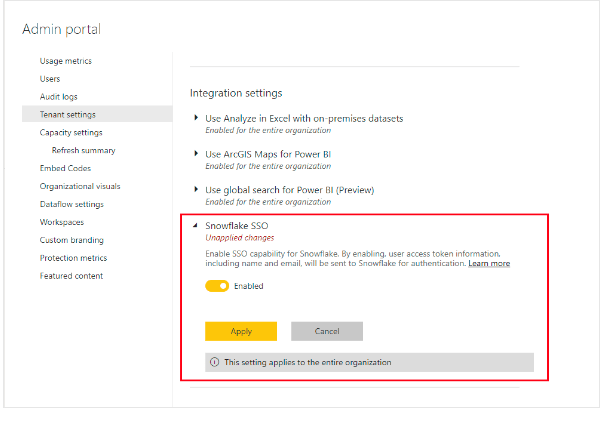
Enable the required option and select Apply. The changes may take some time to become available across the Power BI environment.
Setting up Dataset with Microsoft Entra ID
After logging in to Power BI, select the desired workspace and click on the Settings button available next to the semantic model name.
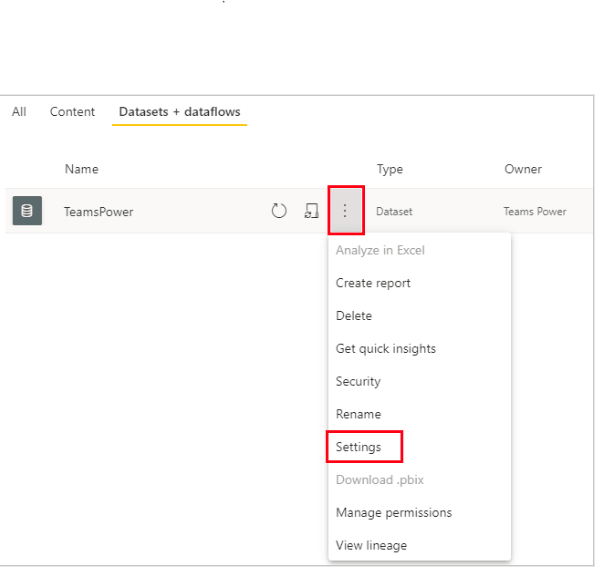
Now, select Data Source Credentials and sign in using the authentication method configured for your Snowflake connection. Power BI supports Basic, Key Pair, and OAuth2 (Microsoft Entra ID) credentials for Snowflake in the Power BI service.
In Data Source Credentials, select End users use their own OAuth2 credentials when accessing this data source via DirectQuery. This setting enables Microsoft Entra SSO for the DirectQuery connection.
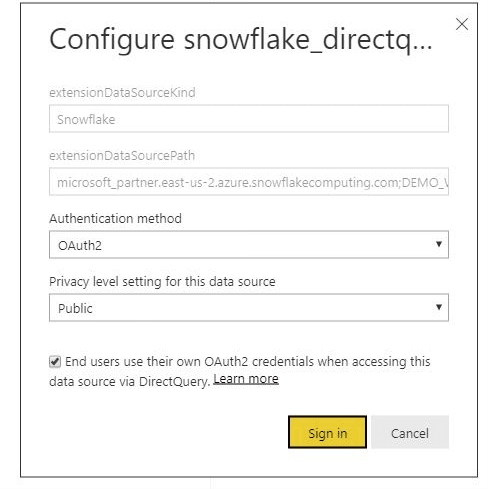
Once you set the required option, click on Sign In. This allows Power BI users to use their Microsoft Entra authentication to establish a connection with data from the Snowflake dataset.
Microsoft Entra ID SSO is currently supported for DirectQuery. If SSO is not enabled, the semantic model can still use the credentials configured for the Snowflake data source.
How to Connect Snowflake Data Warehouse with Power BI?
Open the Power BI Desktop dashboard and select the Get Data button from the Home menu. A new menu will be displayed.
Click on the Database button from the left menu and select Snowflake from the right; refer to the below image.
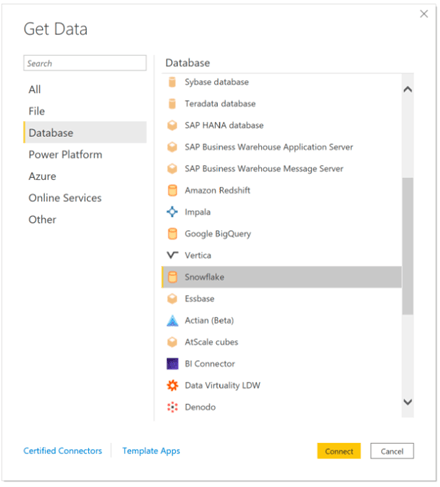
Once you click on Connect, a new window will appear where you need to enter Snowflake server details and the name of the computing warehouse.
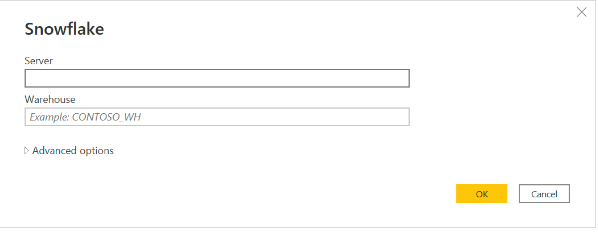
Click on the OK button once you’ve entered the desired values in the empty boxes. You can also specify additional values in Advanced Options, such as the database, role name, connection timeout, command timeout, or a native SQL statement.
Now, specify your Snowflake credentials to proceed and click on the Connect button.
In the Navigator window, select one or more Snowflake objects that you want to use in Power BI. You can select Load to load the data into Power BI Desktop or Transform Data to open Power Query and refine the data before loading it.
Finally, select either Import or DirectQuery, depending on your reporting requirements.
Import vs DirectQuery for Snowflake and Power BI
Import: Import loads a copy of the selected Snowflake data into the Power BI semantic model. It can be suitable when you want data stored within the Power BI model and refreshed according to your reporting requirements.
DirectQuery: DirectQuery allows Power BI to query the data source without importing the complete dataset into the Power BI semantic model. It can be useful when your reporting architecture requires data to remain in Snowflake.
The choice between Import and DirectQuery depends on factors such as data volume, data freshness, report requirements, model design, security, and performance.
Snowflake Connector 2.0 in Power BI
Microsoft introduced a new implementation of the Snowflake connector to improve the integration between Snowflake and Power BI. The new connector implementation 2.0 uses the open-source Arrow Database Connectivity (ADBC) driver.
New Snowflake connections use connector implementation 2.0 by default. Microsoft recommends updating connections created before March 2025 to the new implementation and keeping Power BI Desktop and the on-premises data gateway updated where applicable.
If you have an existing Snowflake connection created with an older connector implementation, it is worth testing the connection after upgrading Power BI Desktop to ensure that authentication, queries, reports, and refreshes continue to work as expected.
Common Snowflake to Power BI Connection Problems
If Power BI cannot connect to Snowflake, check the following areas before changing the entire configuration.
1. Authentication Errors
Verify that the selected authentication method matches the Snowflake configuration. For Microsoft Entra authentication, check that the required Snowflake and Microsoft Entra integration has been configured correctly.
2. Incorrect Server or Warehouse Details
Check the Snowflake account/server information and warehouse details entered in Power BI. Incorrect connection information can prevent Power BI from reaching the required Snowflake environment.
3. Insufficient Snowflake Permissions
Make sure the Snowflake user or identity has access to the required warehouse, database, schema, tables, and views.
4. Network Policy Restrictions
Snowflake network policies can affect Power BI connectivity. If your organisation restricts network access, verify that the relevant Power BI connectivity requirements have been included in the Snowflake configuration.
5. DirectQuery Performance Issues
If reports are slow when using DirectQuery, review the underlying Snowflake queries, data model, report design, filters, relationships, and warehouse configuration. DirectQuery performance depends on the complete reporting architecture rather than Power BI alone.
6. Older Snowflake Connector Version
If an existing Power BI connection was created using an older Snowflake connector implementation, check whether it should be updated to the current Snowflake Connector 2.0 implementation.
Best Practices for Snowflake and Power BI Integration
Choose Import or DirectQuery based on your reporting and data architecture.
Use Microsoft Entra ID and SSO where it aligns with your organisation's identity and security requirements.
Apply least-privilege access to Snowflake databases, schemas, tables, and warehouses.
Keep Power BI Desktop and the Snowflake connector implementation up to date.
Review Snowflake network policies before deploying the connection to production.
Optimise the Snowflake data model before exposing large datasets through DirectQuery.
Test refreshes and authentication after publishing reports to Power BI Service.
Document the Snowflake warehouse, database, schema, authentication, and Power BI semantic model configuration.
How can Dynamics Square help you connect Snowflake with Power BI?
We have explained the entire process of connecting Snowflake from Power BI with simple steps. But, no one is aware of any unwanted issues. If you are having any issue establishing a connection, feel free to connect with the team at Dynamics Square. Our experts can help resolve issues related to Snowflake or Power BI and support the configuration according to your business requirements.
As a Microsoft Dynamics 365 consultant in the UK, Dynamics Square UK can help with Power BI implementation, integration, configuration, and troubleshooting requirements.
If you have any questions, please contact Dynamics Square UK to discuss your Power BI and Snowflake requirements.
See Also
Frequently Asked Questions
Yes. Power BI provides a native Snowflake connector that allows you to connect Snowflake data with Power BI Desktop and Power BI semantic models. Supported connection modes include Import and DirectQuery.
Open Power BI Desktop, select Get Data, choose Snowflake, enter your Snowflake connection details, authenticate, select the required data, and choose Import or DirectQuery.
Yes. Microsoft Entra ID authentication is supported for Snowflake connections, and Microsoft documents Microsoft Entra SSO for Snowflake with Power BI, particularly for DirectQuery scenarios.
Import loads data into the Power BI semantic model, while DirectQuery keeps the data in Snowflake and sends queries to the source. Your choice should depend on data volume, freshness, performance, governance, and reporting requirements.
Not normally for supported cloud connectivity. However, private connectivity and specific network architectures can require an on-premises data gateway.